
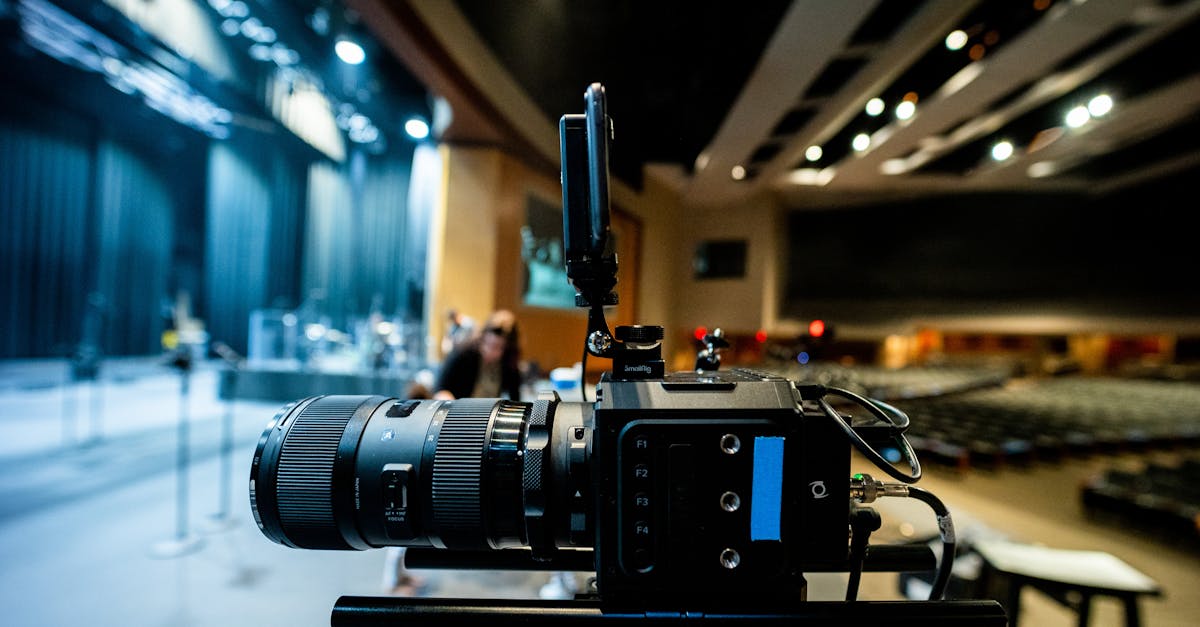
Student presentations used to mean standing in front of the class with poster board or PowerPoint slides. Now students have options: videos, podcasts, interactive slides, animations, and more. These tools make presentations more engaging for both creators and audiences. They also teach students digital communication skills they’ll use in college and careers. This guide covers the best audiovisual tools for student presentations and how to teach students to use them effectively.
Slide and Interactive Presentation Tools
Google Slides remains the standard for traditional slide presentations. It’s free, works on any device, and supports real-time collaboration so multiple students can edit the same file at once. Before students begin, teach design basics: avoid cluttered slides, limit text per slide, use readable fonts, and write presenter notes instead of reading from the screen. These habits carry over to every platform they’ll use later. Grades 3-12.
Canva Presentations produces professional-looking results with minimal design effort, thanks to pre-built templates. The challenge is time management: students can spend an entire work period choosing fonts and color palettes instead of developing their content. Set a firm 10 to 15 minute design limit and redirect attention back to what they’re actually saying. Free through Canva for Education. Grades 6-12.
Prezi uses a zoomable canvas rather than static slides, which works well for topics with layers or interconnected ideas. Students zoom in for detail and pull back for the big picture. Two real trade-offs: the zooming can cause motion sickness if overdone, and students need a full class period to learn the interface before working independently. Free for educators. Grades 7-12.
Pear Deck and Nearpod turn presentations into two-way experiences. Students in the audience respond to embedded polls, quizzes, and drawing prompts on their own devices in real time. An eighth-grade class presenting on climate change embedded a live poll on concern levels, then discussed the spread of results as part of the presentation itself. That dynamic is difficult to produce with static slides. Limit interactive elements to one or two per presentation so they sharpen focus rather than create distraction. Grades 3-12.
Video, Animation, and Motion Graphics
Flipgrid is a video discussion platform built for short, informal presentations, typically one to five minutes. It feels lower-stakes than live presenting, which makes it more accessible for students who freeze in front of an audience. Third graders have recorded two-minute science fair explanations while classmates left video comments in response, creating a discussion format that doesn’t exist in traditional presentations. Free. Grades K-12.
WeVideo and Clipchamp handle polished video projects: documentaries, tutorials, and PSAs. Students trim clips, add voiceovers and background music, and apply transitions. Require storyboards before anyone opens an editor, and build rubrics that weight content more than production quality. A well-researched, clearly narrated video matters more than smooth camera work. Grades 5-12.
Adobe Express and Canva Video let students create short animated videos using images, diagrams, and recorded voiceover without appearing on camera. Seventh graders have explained photosynthesis this way, combining labeled diagrams with narration in under two minutes. Require a written script before recording starts; it reduces editing time significantly and keeps the content focused. Free for educators. Grades 4-12.
Powtoon and Animaker offer drag-and-drop animation with pre-made characters, scenes, and backgrounds. Fifth graders have produced animated explainer videos on the branches of government with no prior animation experience. One consistent lesson: animation always takes longer than students expect. Set a firm one to two minute length cap and build in more class time than seems necessary. Grades 4-12.
Stop Motion Studio uses a tablet or phone camera to create stop-motion animation. It’s hands-on in a way screen-based tools aren’t, and accessible enough for younger students who might struggle with video editing software. Keep projects under one minute and plan for at least two class periods to complete the work. Free with an optional paid upgrade. Grades K-8.
Audio and Visual Display Tools
Anchor (Spotify for Podcasters) records, edits, and publishes podcasts in a single free app. Podcasting works especially well for research-based assignments because it requires students to write for an audience, practice delivery, and sustain focus for a defined length. Eleventh graders have created podcast episodes on themes from their literature unit, scripted and recorded as if producing a real show, then shared episodes with classmates who came to discussion prepared. Require scripts before any recording begins and cover microphone basics: distance from the mic, pacing, and background noise. Grades 6-12.
Soundtrap and Audacity support multi-track audio work with more control over the final product. Sixth graders have built audio documentaries on immigration by recording family interviews, writing narration to connect segments, and layering in background music. The multi-step production process mirrors real-world audio journalism and builds editing skills alongside content knowledge. Soundtrap has an education plan with collaboration features; Audacity is free and open-source, better suited for older students comfortable with a more involved interface. Grades 5-12.
Piktochart and Venngage bring infographic design into the presentation toolkit. Students summarize research, visualize data, and present information in a format that mirrors how professional communication actually works. Teach data visualization basics before students begin: choose the right chart type for the data, label everything clearly, and require citations. An infographic without sources is decoration, not evidence. Grades 6-12.
Making These Tools Work in Your Classroom
Teach the tool before assigning the project. A 15 to 20 minute guided tutorial prevents hours of troubleshooting later. Build rubrics that weight content at roughly 60%, organization at 20%, and design at 20%. Students tend to reverse those priorities on their own, investing most of their energy in visuals rather than substance. Naming those weights explicitly at the start shifts where students put their effort.
Set clear constraints upfront: three to five minutes for videos, eight to twelve slides for presentations, five to ten minutes for podcasts. Constraints are scaffolding, not punishment. Require a planning document before students touch any software, whether that’s a script, storyboard, or outline. Build in a peer feedback round before final submission so students revise based on actual audience response rather than guesswork about what the teacher wants.
Start with the learning goal and find the tool that supports it. Show students examples of strong work before they begin so expectations are concrete, and confirm that every student has device access if media creation is assigned as homework. The best presentation tool is the one your students can actually use.
Presentations look different now than they did ten years ago, but the goal is unchanged: students communicating ideas clearly to an audience. The tools covered here give you and your students more ways to reach that goal, and more ways to make the process genuinely worth the effort.
Related Reading
- Audiovisual Tools for Student Presentations: Beyond PowerPoint
- Beyond the Tools: Why AI in Classrooms Needs More Than Technical Skills
- Digital Portfolios for Student Work: Tools and Best Practices
- Beyond the Tools: Why AI in Classrooms Needs More Than Technical Skills
- Digital Portfolios for Student Work: Tools and Best Practices
Try This Free Tool
RazaEd offers free AI-powered literacy tools for K-12 teachers, including differentiated reading passages, comprehension questions, and vocabulary activities for any grade level.